TABLE OF CONTENTS
2. How to Fill Out the Rate Card
- Step 1: Wait for World Courier to issue the Rate Card
- Step 2: Add Charges as per the Rate Agreement
- Step 3: Confirm and Submit for Review
3. Video Guide
RATE CARD OVERVIEW
As an agent, you are required to input your rates into the Rate Card in accordance with the Agent Rate Agreement and submit the completed Rate Card for approval.
These are managed within the Freight Rate Collaboration App, which centralizes all rate-related data and ensures it remains up to date.
Note: Completing the Rate Card is a mandatory initial step, as Purchase Orders and Invoices cannot be processed until the Rate Card has been reviewed, approved, and accepted
HOW TO FILL OUT THE RATE CARD
Kindly follow the three steps to complete your Rate Card in Tradeshift.
Step 1: Please wait for World Courier to issue the Rate Card before proceeding
Manual creation of the Rate Card is not required, as World Courier will issue it to you upon the completion of your registration.
- If you have not yet received a Rate Card, please contact World Courier.
 Important: If you attempt to create a Rate Card independently within Tradeshift, it will be generated as a blank document and will neither be functional nor eligible for submission
- Once the Rate Card is issued by World Courier, it will be available in the Freight Rate Collaboration App, populated with all agreed-upon cost lines.
- The Rate Card will be presented with the status marked as 'New,' signifying that it is ready for you to complete.
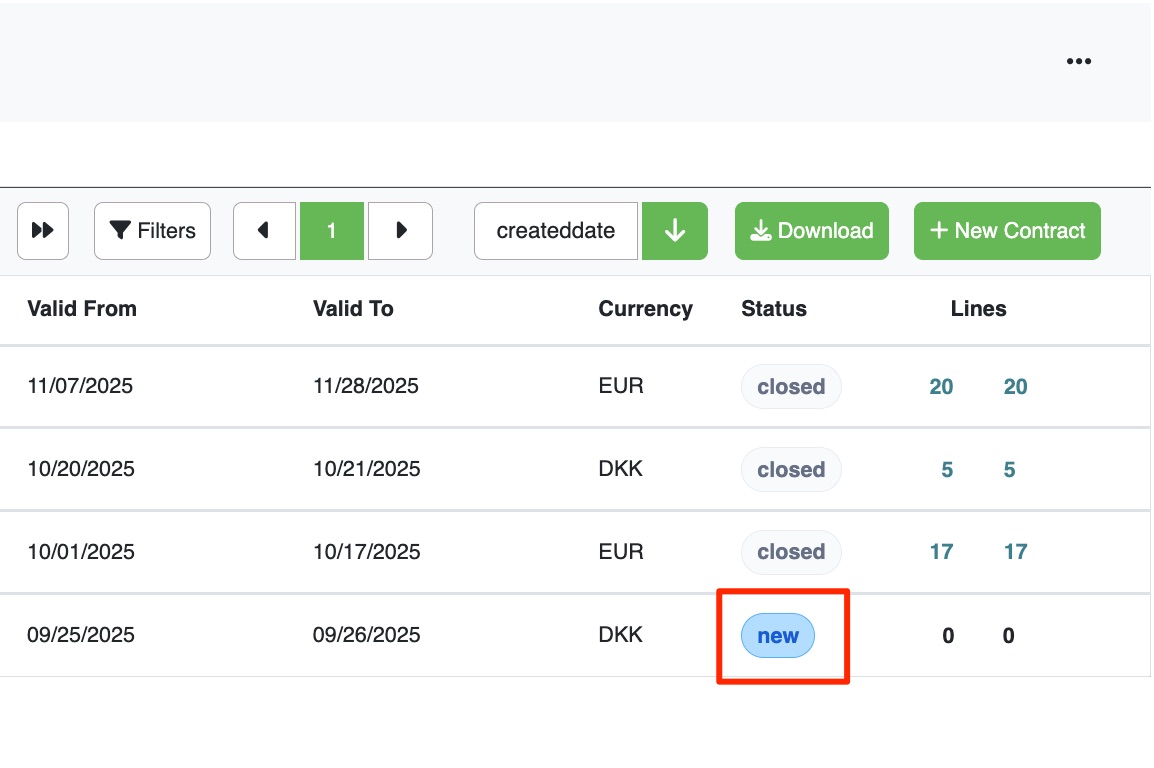
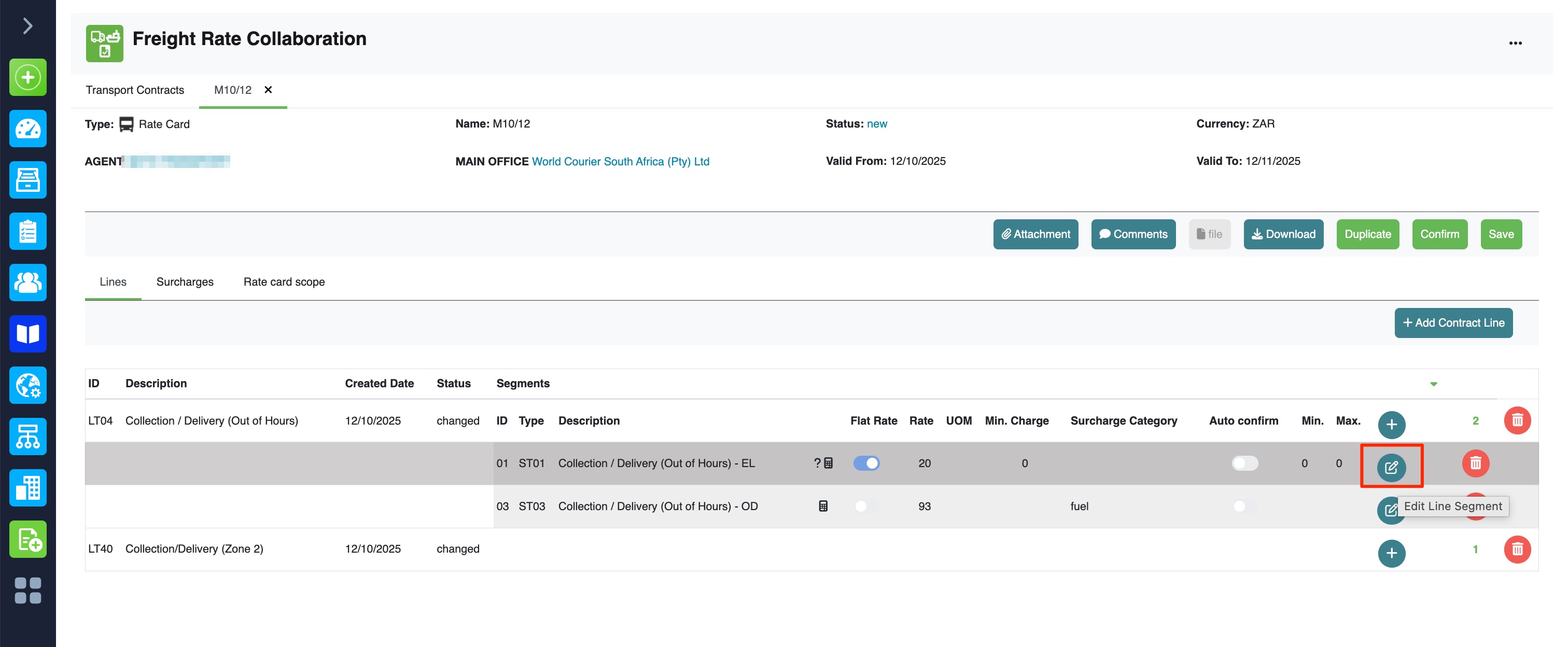
Step 2: Enter the charges in accordance with the Agent Rate Agreement.
- Enter charges strictly in accordance with the terms outlined in your Agent Rate Agreement with World Courier.
- All cost lines will be pre-populated by World Courier in accordance with the contract. These lines cannot be added, removed, or edited. You will only need to add the rates.
- To view the complete list of contract lines:
-
Go to the Lines tab, click on
 ‘expand/collapse’ icon.
- To enter your rates:
- Click on the
 pencil icon, to update an existing charge.
 - Click on the
 Plus icon, to add a charge.
- You are only permitted to input charges for the services explicitly defined in the original scope; entries beyond the agreed scope are not allowed
- Review all line items carefully to ensure your entries match the official Agent Rate Agreement. If you’re not ready to submit yet, you can click the “Save” button to keep your changes and return to them later.
Step 3: Confirm and Submit for Review
- After entering all applicable charges, select the 'Confirm' button to submit the Rate Card to World Courier for review and approval.
- Once submitted, the status will update to 'Changed,' and all fields will become non-editable
- World Courier will either:
- Approve the Rate Card if everything matches the Agent Rate Agreement — status changes to “Approved”, and the Rate Card becomes active.
- Or reject specific charges, requesting corrections before you can resubmit. You will find the instructions below.
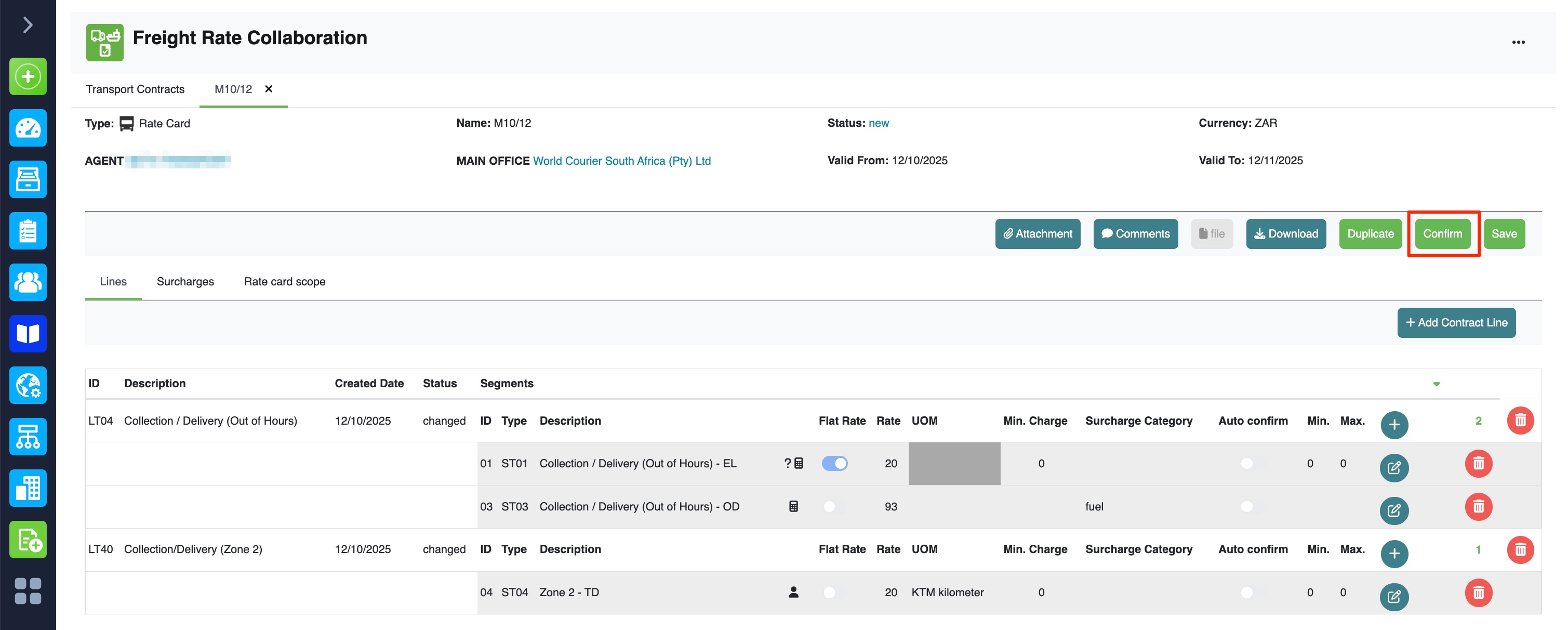
Click "Confirm" to submit the Rate Card back to World Courier.
You may begin working with Purchase Orders (POs) and submitting invoices only after the Rate Card has been approved
HOW TO EDIT REJECTED RATE CARD
Common Cause of Rejection
The most frequent reason for rejection is a discrepancy between the submitted Rate Card and the Agent Rate Agreement. This may occur due to:
- Inclusion of line items not defined in the agreement.
- Incorrect cost values for certain services or charges.
- Missing mandatory line items.
- Unauthorized modifications to pre-approved entries.
How to Proceed
- Go through each line item in the Rate Card and compare it with the Agent Rate Agreement. Pay close attention to service names, units, and cost values.
- Adjust the necessary fields to match the agreement terms. Be sure not to modify any fields that are system-generated or locked unless instructed otherwise by World Courier.
- When resubmitting, include a brief comment explaining the changes made or clarifying any confusion. This helps the review team process your submission faster.
- Once all corrections are made, resend the Rate Card to World Courier for another review. Make sure all entries are accurate and complete to avoid further delays.
- You'll see an empty Rate Card with no line items.
- You won't be able to add or edit any cost lines yourself.
- Even World Courier (EC) cannot edit or add cost lines to this blank version -- it remains unusable
- If approved, the status changes to "Approved" -- this means the Rate Card is now valid and active.
- If rejected, you'll need to adjust your charges to match the agreed rates and resubmit.
- if the added or changed rates don't match the contract (agent rate agreement)
- or you left the required field blank
If your Rate Card has been marked as Rejected, follow these steps to resolve the issue:
VIDEO GUIDE
FREQUENTLY ASKED QUESTIONS (FAQ'S)
Can I create a Rate Card myself?
No, you cannot.
If you try to create a Rate Card on your own:
So while the system allows it, it won't help you move forward. That's why it's better to follow the correct process below.
What's the correct way to fill a Rate Card?
1. Request a Rate Card (if you haven't received one yet). This is done outside Tradeshift (usually by email or direct contact)
2. World Courier sets up the Rate Card, adding cost lines based on your agreement.
3. You enter the charges for each line
4. Once you're done, click "Confirm" to send it back to World Courier for review.
5. World Courier reviews the Rate Card:
Tip: Use the comment bubble to explain why a rate is different -- this helps World Courier understand your reasoning for the added/edited charge.
What is the duration of validity for the rate card after approval? Or how do I check my validity date?
You can view your rate card validity dates by opening the rate card. You will be able to see the valid from and valid to dates clearly displayed. The rate card is typically valid for one year after approval; however, the exact duration may vary depending on your specific agreement.
What can cause a Rate Card to be rejected?
A Rate Card may be rejected:
Tip: Always review your rates carefully and use the comment bubble to add a reasoning for the changed/added rate.
Need help? Contact your World Courier representative to understand the reason for rejection.